This tutorial was written by Katherine Walden, Digital Liberal Arts Specialist at Grinnell College. Tutorial instructions were co-authored by Sarah Purcell (L.F. Parker Professor of History, Grinnell College) and Papa Ampim-Darko, a student research assistant at Grinnell College.
This tutorial was reviewed by Gina Donovan (Instructional Technologist, Grinnell College).
This tutorial is adapted from Michelle Moravec’s History in the City Stanford NER tutorial and Rachel Burma’s The Rise of the Novel Robinson Crusoe NER assignment.

Natural Language Processing (Stanford’s Named Entity Recognizer) is licensed under a Creative Commons Attribution-NonCommercial 4.0 International License.
Developed in 2006 by a team based out of Stanford University’s National Language Processing Group, the Stanford Named Entity Recognizer (NER) is a Java-based tool for recognizing and extracting named entities in an unstructured textual dataset. In this tutorial, we’ll be using Stanford’s NER to identify named entities in The Interesting Narrative of the Life of Olaudah Equiano, Or Gustavus Vassa, The African, an autobiographical slave narrative published in 1789.
Data
1- Navigate to http://sarahjpurcell.sites.grinnell.edu/digital_methods/files/Equiano_Text.txt in a web browser and save the “Equiano_Text” text file to your Desktop.. Open Equiano.txt to see the plain text utf-8 file downloaded from Project Gutenberg.
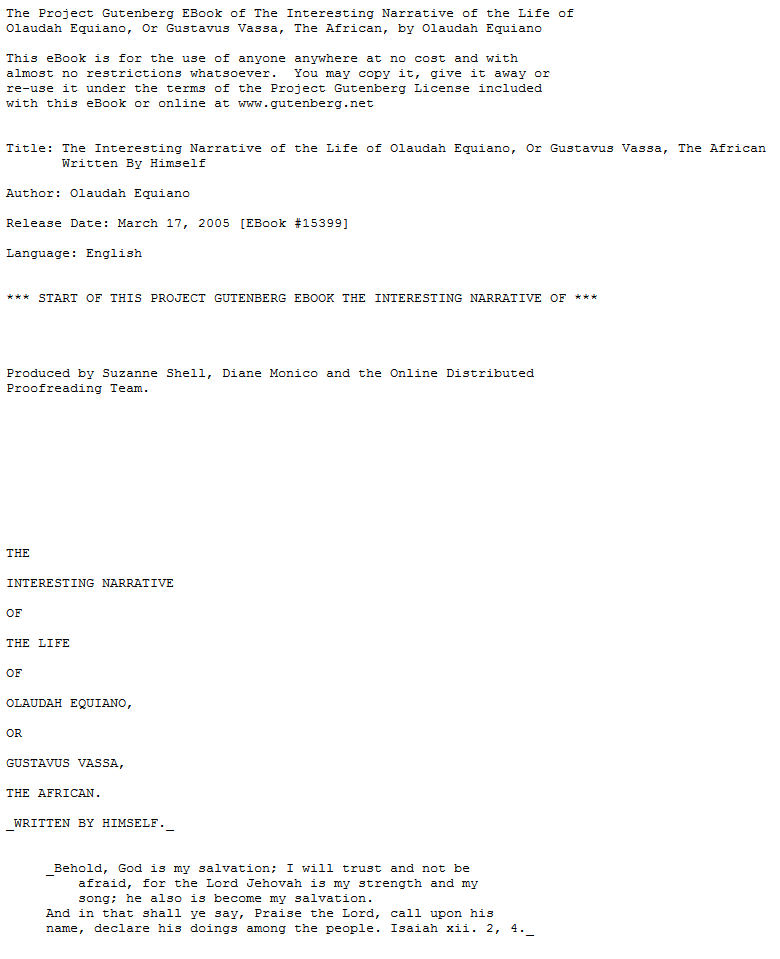
2-Copy the file to your Desktop, and right click on the file to open it in Notepad, the native Windows text editing program.
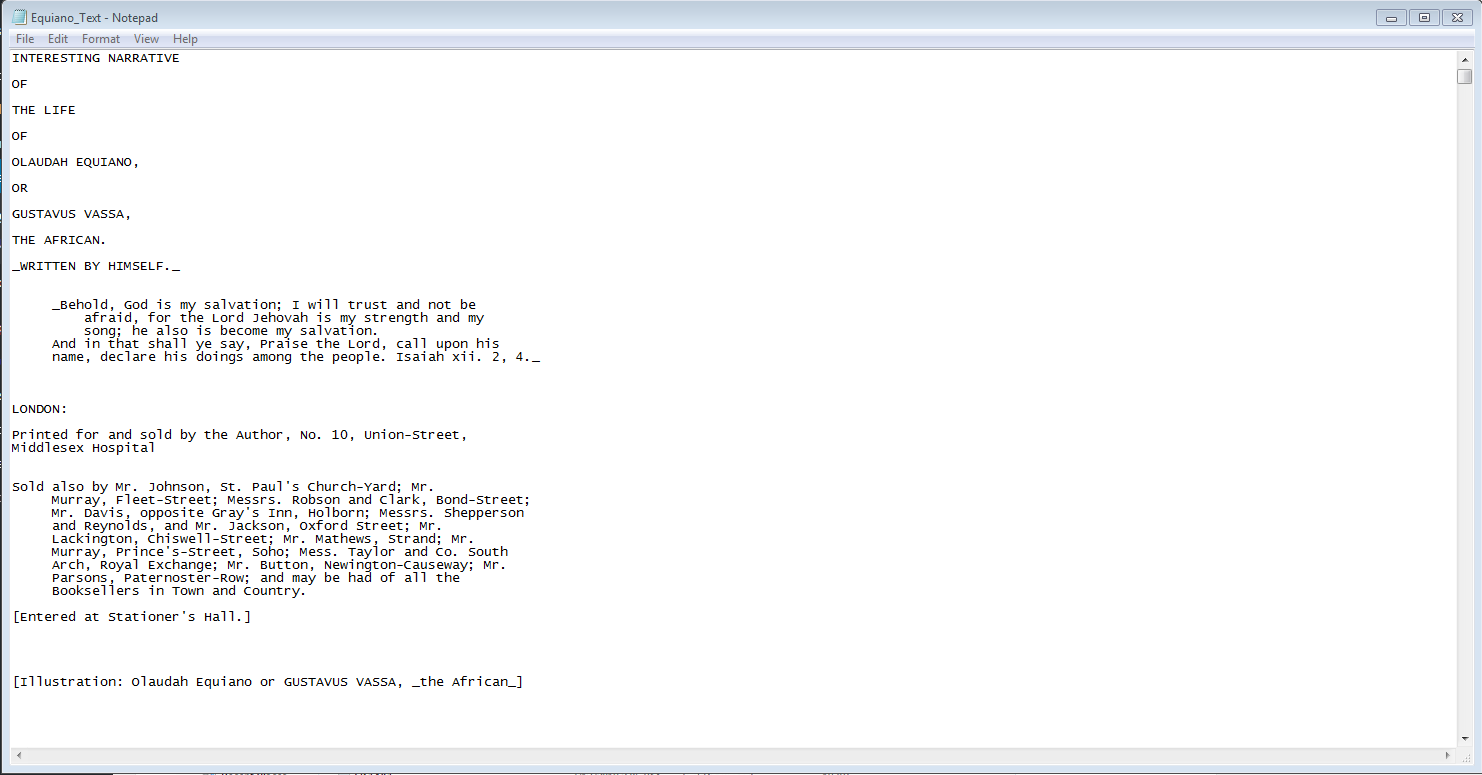
3-Because the text file was downloaded from Project Gutenberg, it contains information at the beginning and end of the file that is not part of the original Equiano text. Delete these lines, re-save the file to your Desktop, and close Notepad.
Opening Stanford’s NER
4-The NER has already been downloaded and installed on the Library computers. To install on your own computer, visit the program’s Download page.
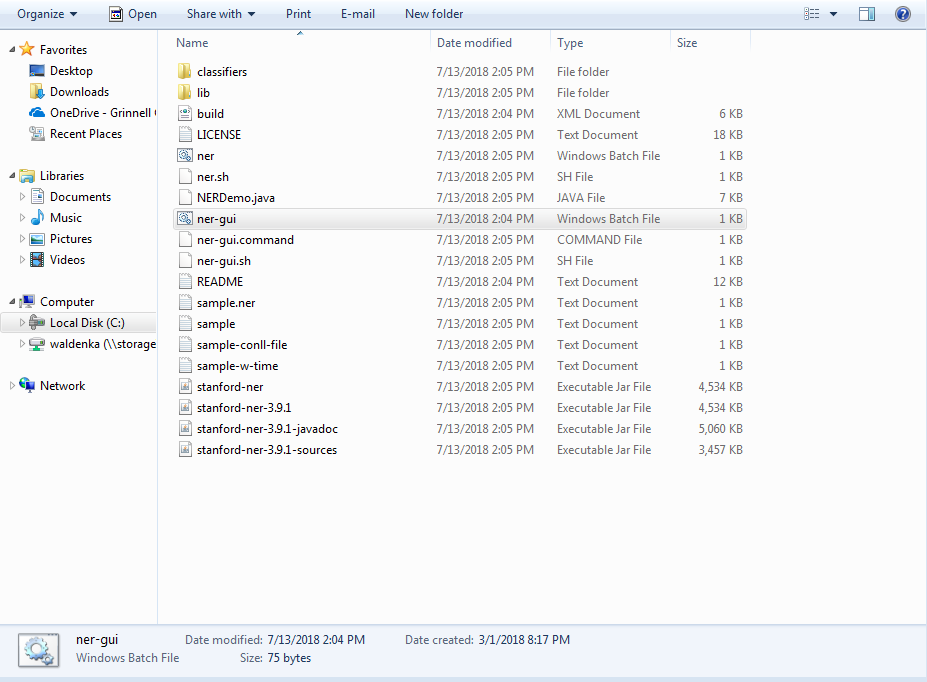
5-To open the program, navigate to C:\Program Files (x86)\Stanford NER and double click on the Windows Batch File named ner-gui.
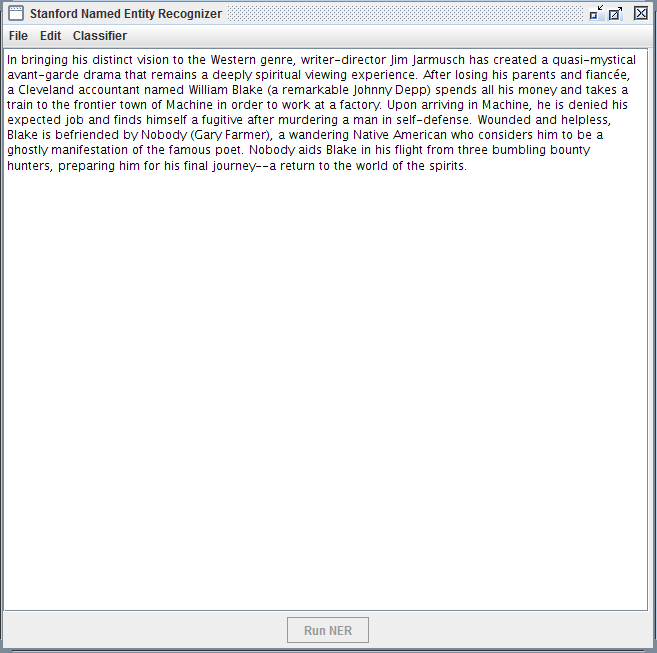
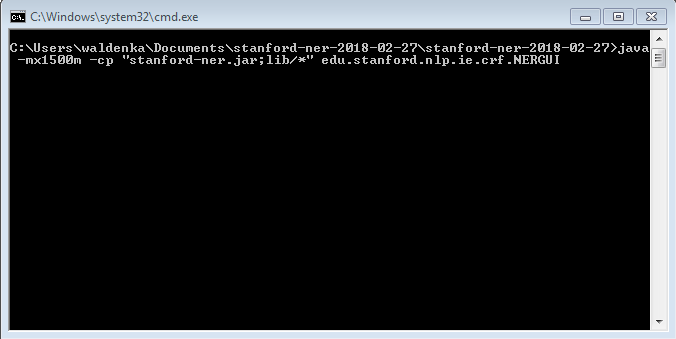
6-The program will launch two windows—a Command Prompt shell that will run the program via the CLI, and a GUI interface. Both windows need to remain open for the program to run.
Loading data into the NER
7-Erase the sample text in the GUI interface window.
8-Click File->Open File, and select the Equiano.txt file saved to your Desktop.
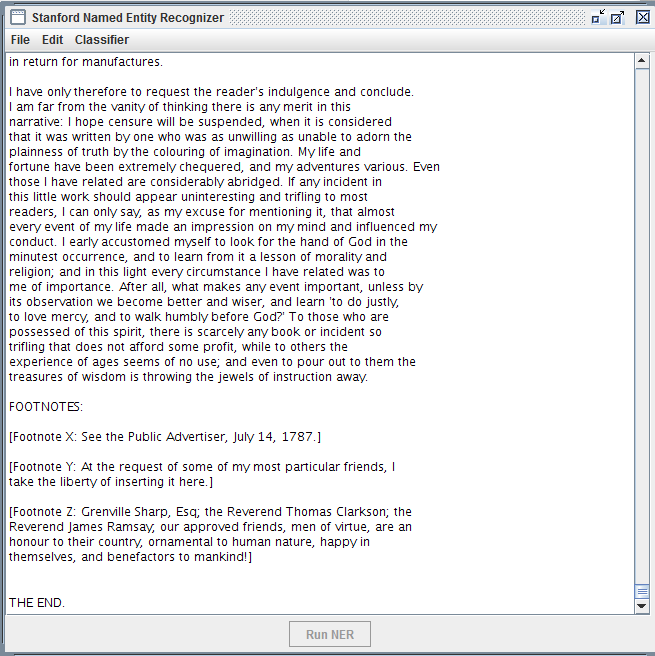
9-Text will appear in the GUI window once the file has loaded.
Identifying Classifiers in the NER
10-Next, we need to load a list of sample terms for the NER to use when analyzing our text.
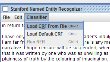
11-Click Classifier->Load CRF from File. Navigate to C:\Program Files (x86)\Stanford NER\classifiers and open the classifiers folder.
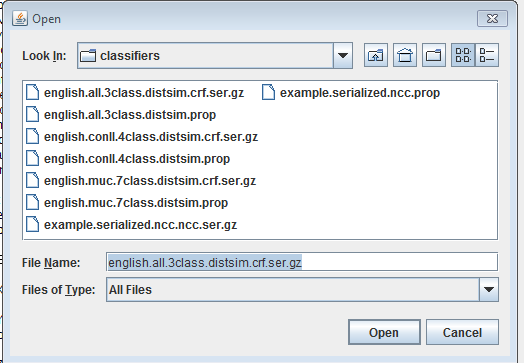
12-Stanford’s NER includes classifier resource files with 3, 4, and 7 entity categories it can search for in your text.
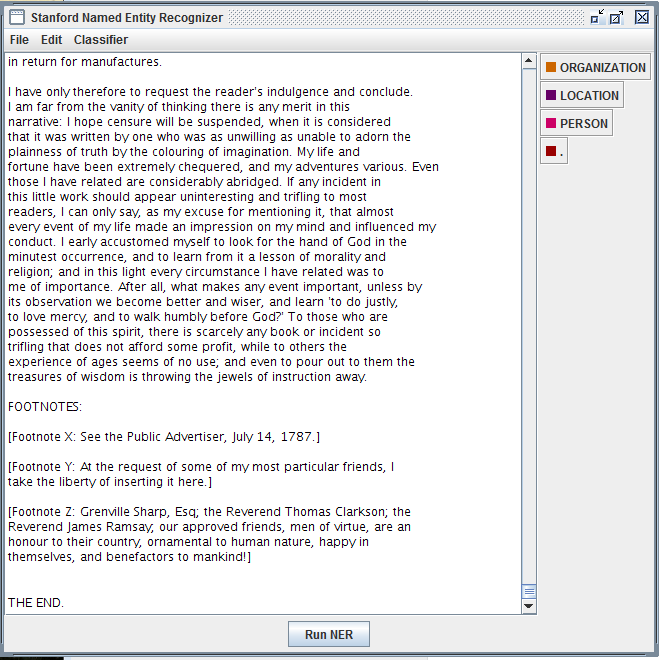
13-Select the english.all.3class.distim.crf.ser.gz file and click the Open icon. Three entity categories (organization, location, person), with color labels, will now display on the right-hand side of the GUI window.
14-Click on the Run NER icon on the bottom of the GUI window to run the program.
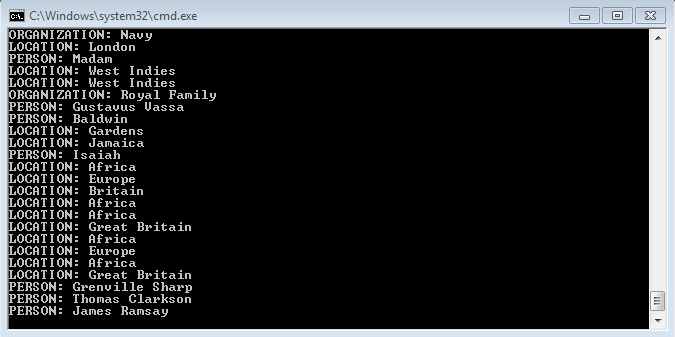
15-You can see the results being generated from the NER program in the CLI window.
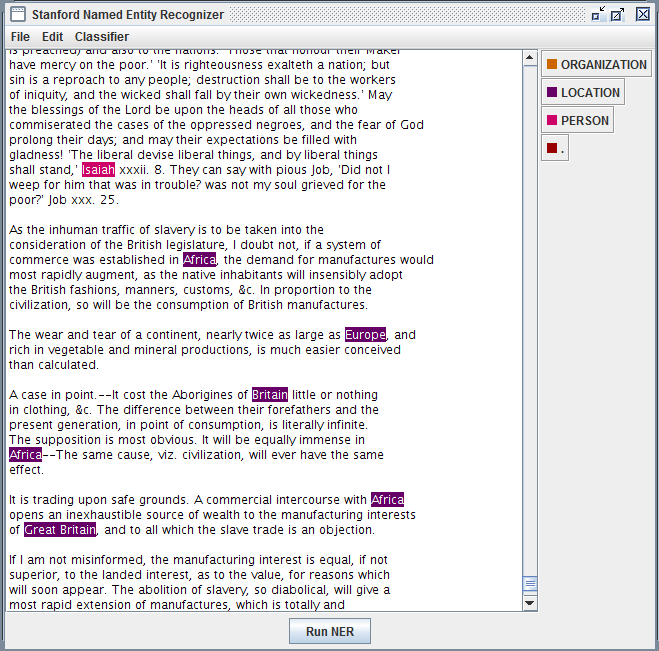
16-The GUI window now shows the color-coded results of the NER program’s analysis.

17-The GUI interface gives you options to export your tagged file. Click File->Save Tagged File As. Navigate to your Desktop and save the file as Equiano_Tagged.txt.
18-You could also copy the text generated in the CLI and paste into a text file to see a list with just the tagged entities.
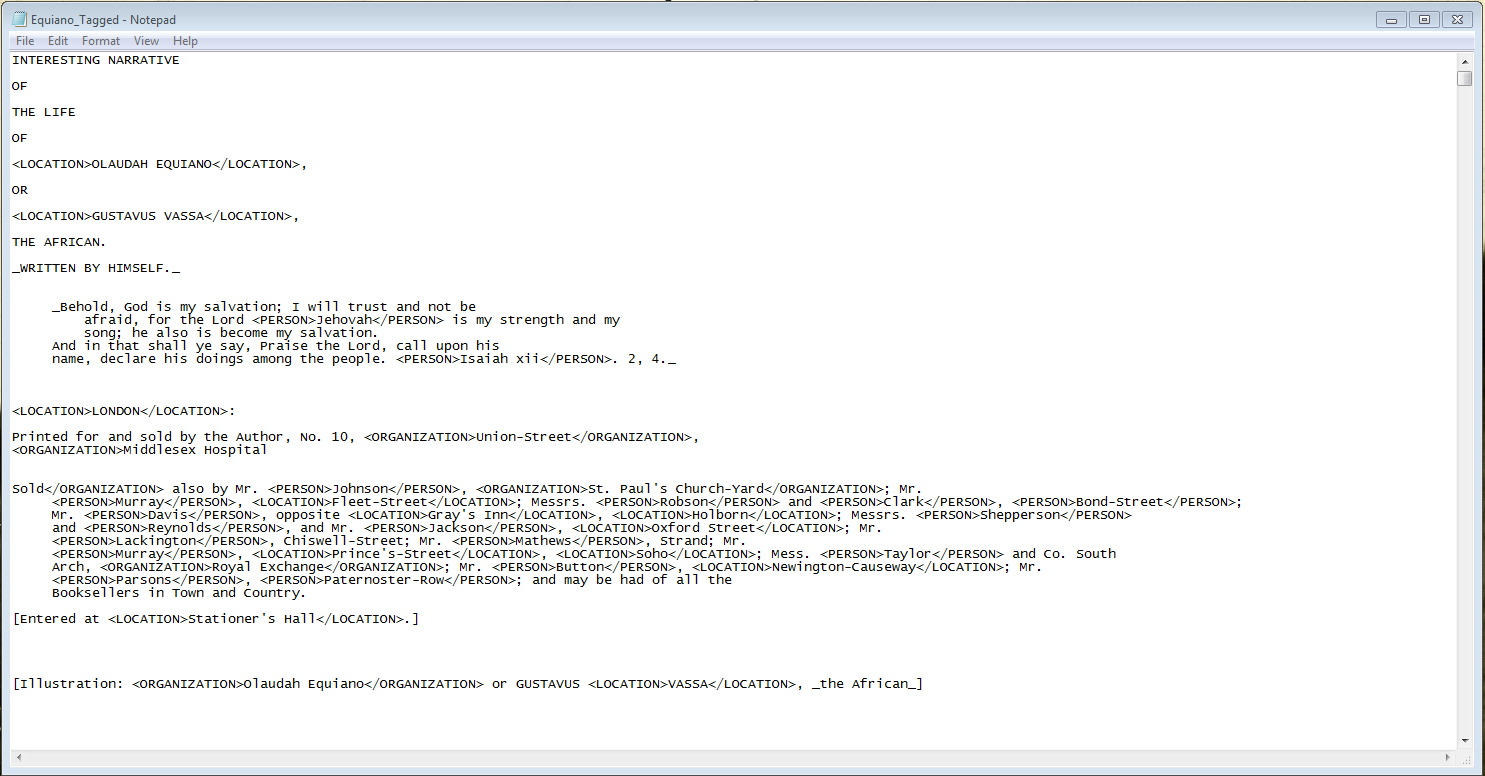
19-Right click on the icon for the Equiano_Tagged.txt file and open in Notepad.
20-You’ll see that the NER has added <LOCATION>, <PERSON>, or <ORGANIZATION> tags around the entities it recognized based on the terms in the classification file. We could use a combination of XML and XPath to isolate terms with particular tag categories.
Reflection questions
- Scroll down and see how accurate the NER was in identifying and tagging elements in the text. What errors or problems do you notice? How would those errors impact analysis of this text?
- How did the process of using the NER impact or shape your understanding of the original text?
- What kinds of historical research questions could a tool like Stanford’s NER help address?
- What types of questions would not be a good fit for Stanford’s NER?
- What problems or limitations can you see for using Stanford’s NER as a tool for historical analysis?
Validating Tagged Entities as an XML Document
21-The output of the NER program is a text file with tagged elements. To prepare for Friday’s experimental lab, we’ll be importing that data into an Excel document so we have a list of the tagged entities.
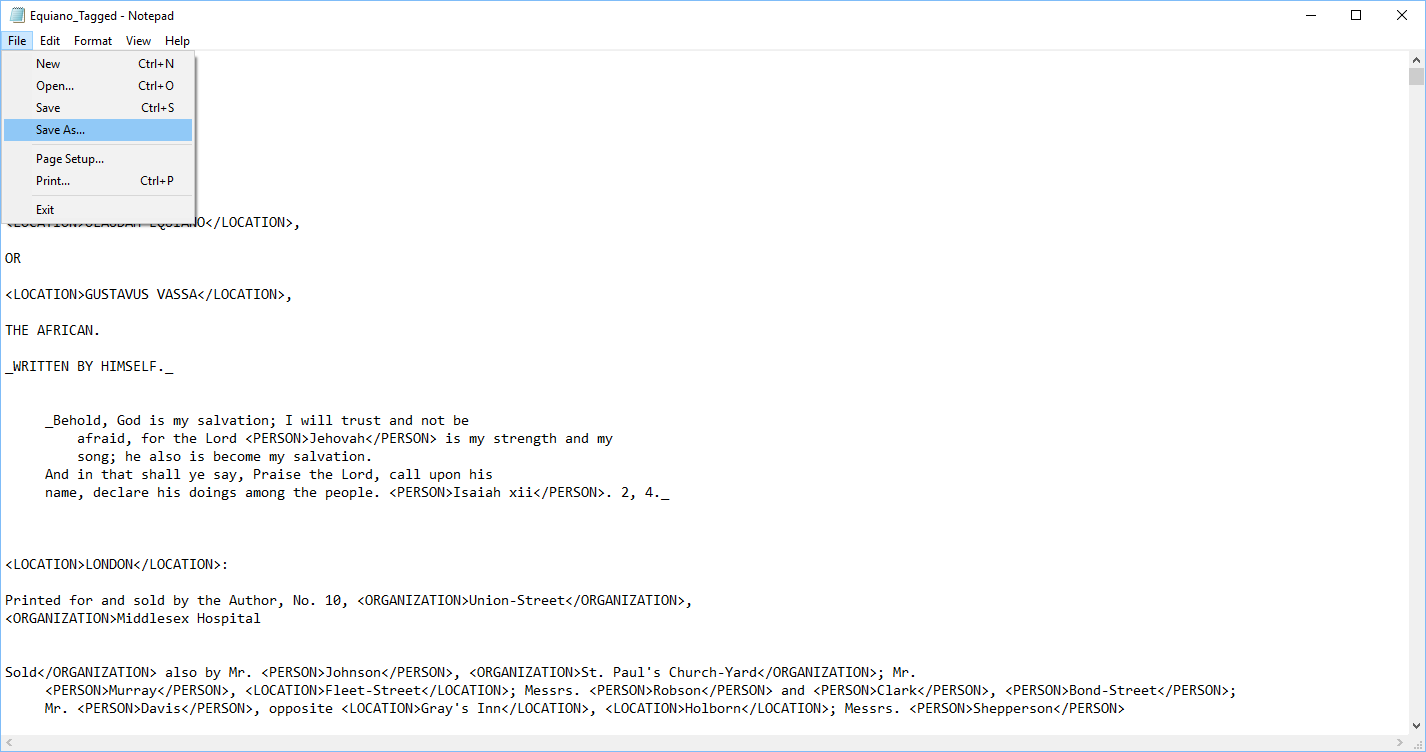
22-Open the Equiano_Tagged.txt file in Notepad. Click File—Save As to save a second copy of the NER output.
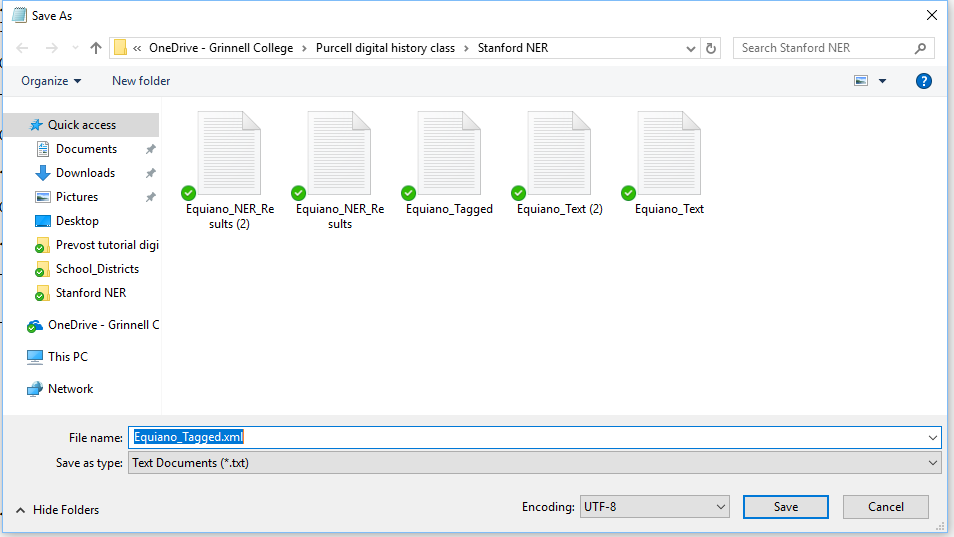
23-Notepad’s default settings will save the file as a plain-text (.txt) file. We want to save the output as an extensible markup language (.xml) file to be able to extract the tagged entities.
24-In the File name box, add .xml to the end of the file name. Save the XML file to your Desktop.
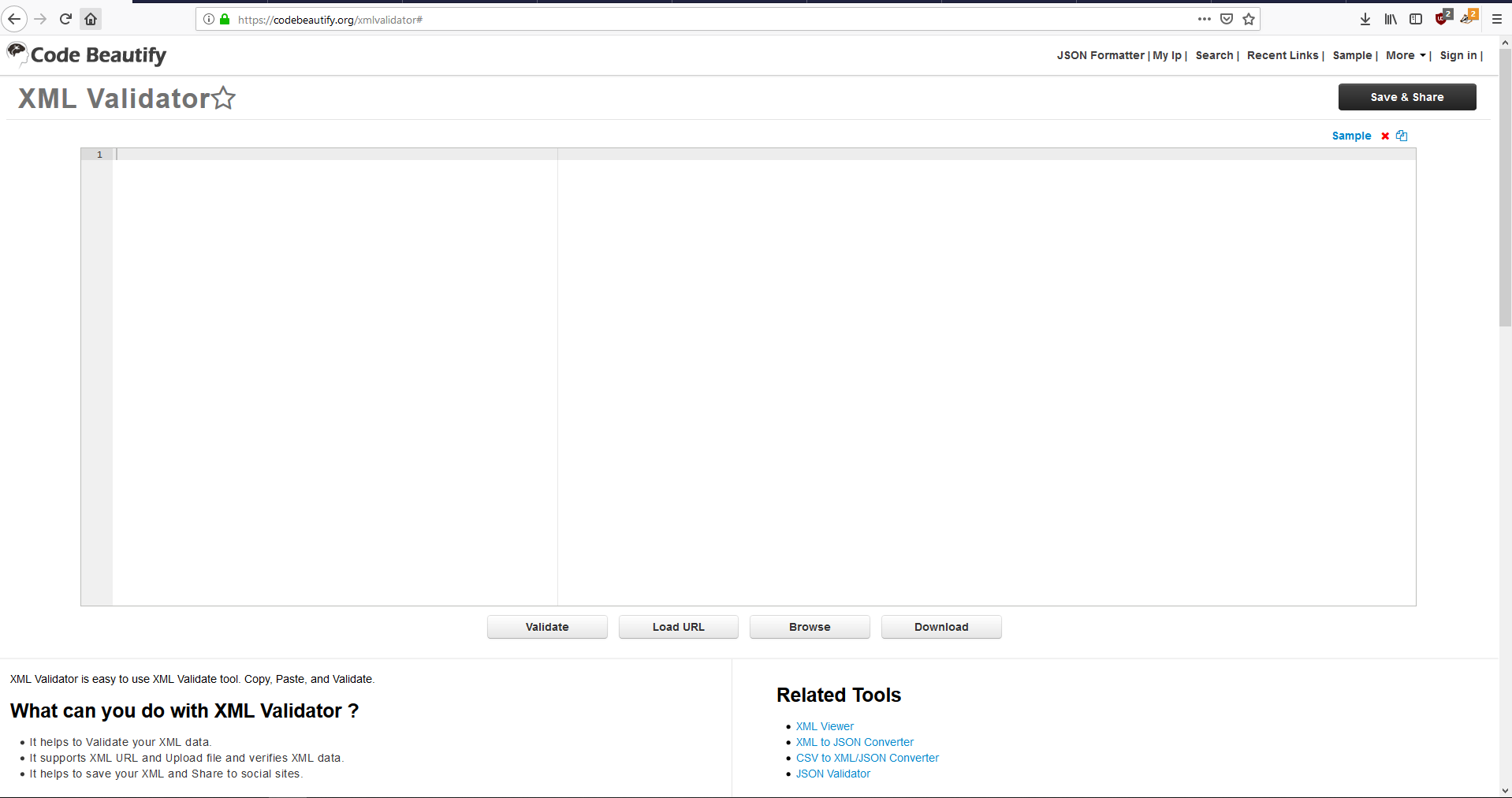
25-Navigate to https://codebeautify.org/xmlvalidator# in a web browser to validate your XML
Free online validators can be a useful tool to identify errors or problems in a variety of file types (XML, HTML, JSON, etc.).
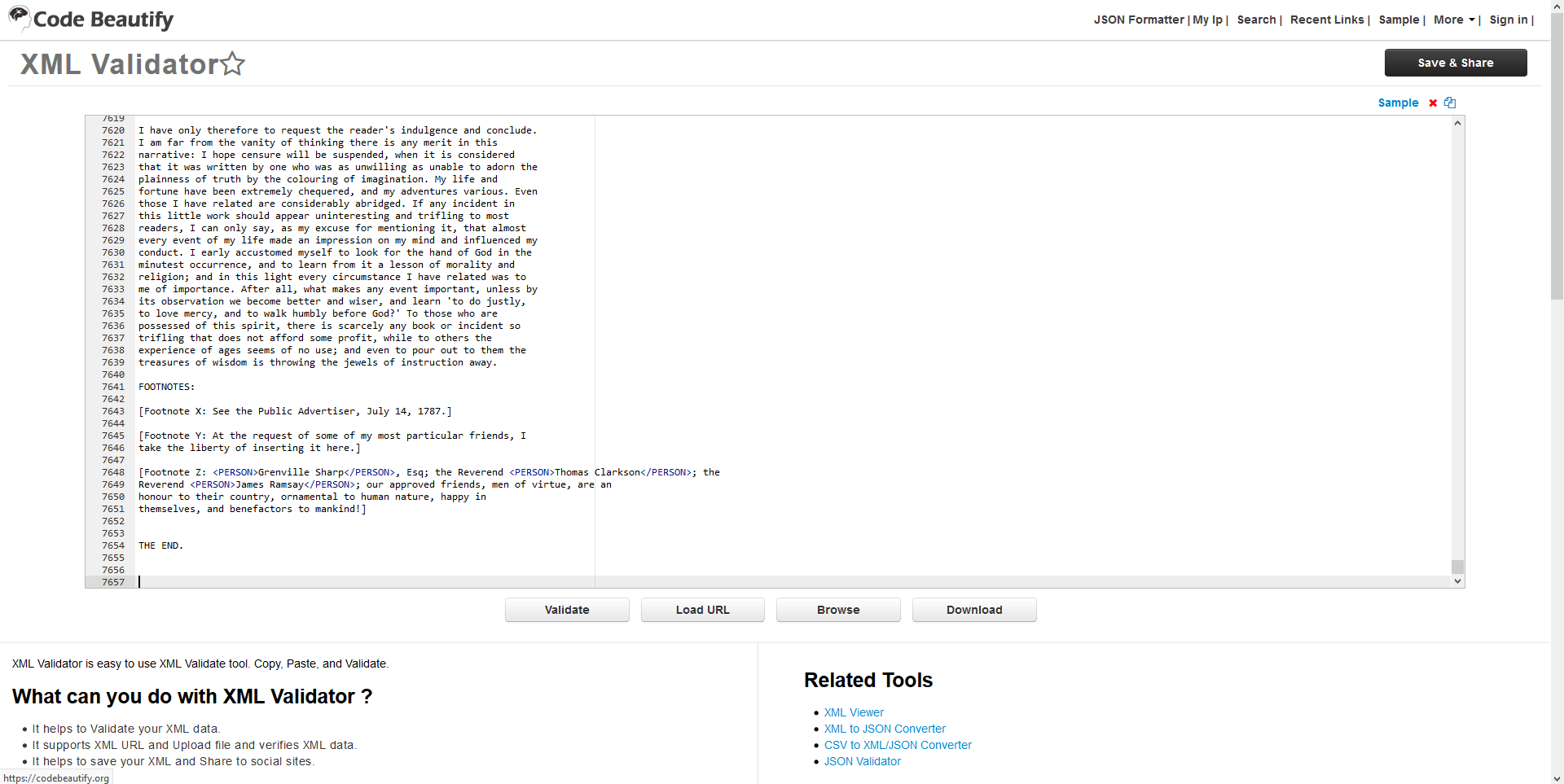
26-Copy the text in the Equiano_Tagged file, and paste it into the XML validator. Click Validate to check your XML.
27-The XML validator identifies an error in Line 1 of our Equiano data.
28-The World Wide Web Consortium (W3C) guidelines say that valid XML has to declare a root element at the start the XML document.
29-Add <root> to the first line of your XML, and </root> at the end of your XML.
30-Re-paste your text into the XML validator, and run the Validator again.
31-We have another error in Line 518 of our XML.
The ampersand symbol has a special function/meaning in XML, meaning the “&c.” combination of characters will cause errors in validating or loading the XML.
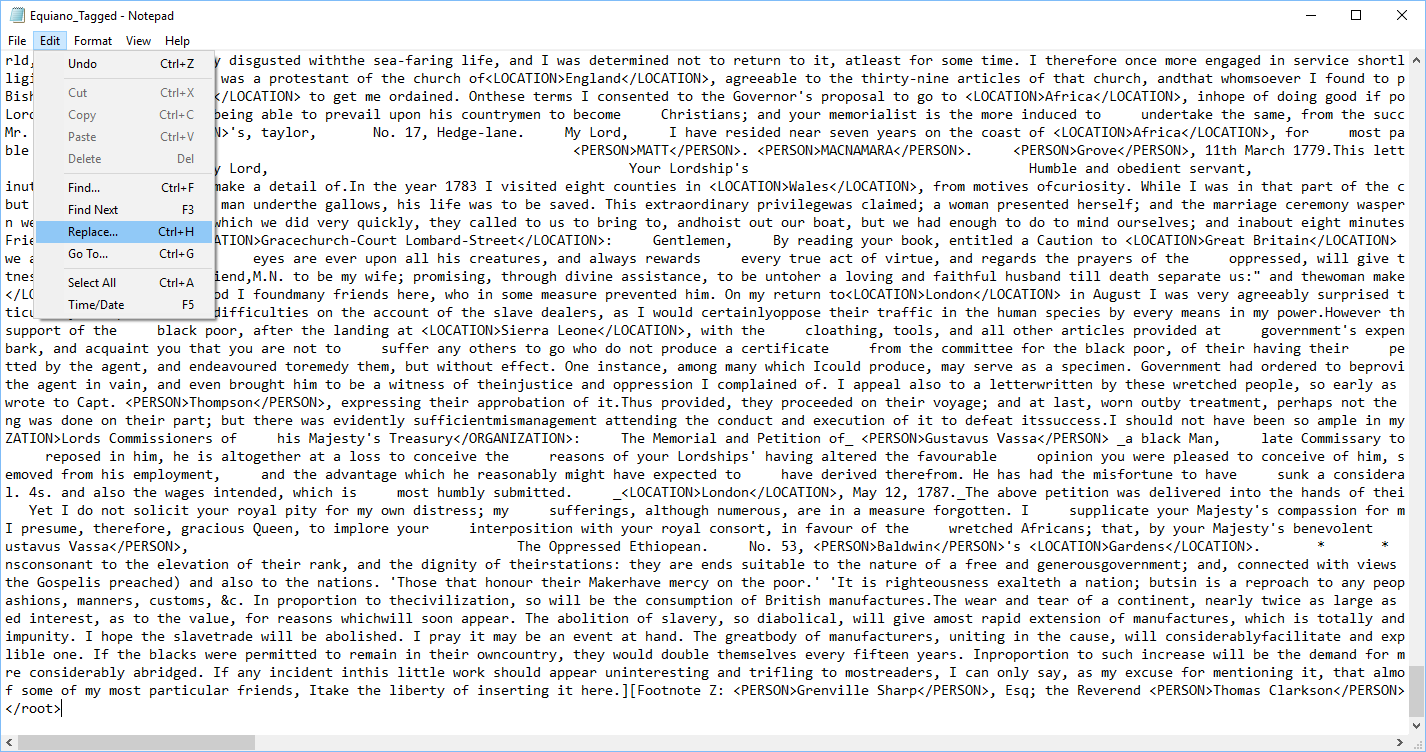
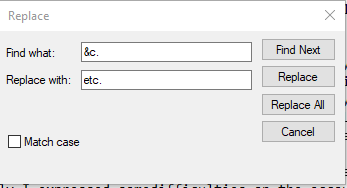
32-Go to Edit—Replace in Notepad. Instruct the program to find all instances of “&c.” and replace them with “etc.”. Click Replace All.
33-Save the XML file, re-paste into the Validator, and validate once again.
34-We now have valid XML to load into Microsoft Excel.
Loading XML Data into Excel
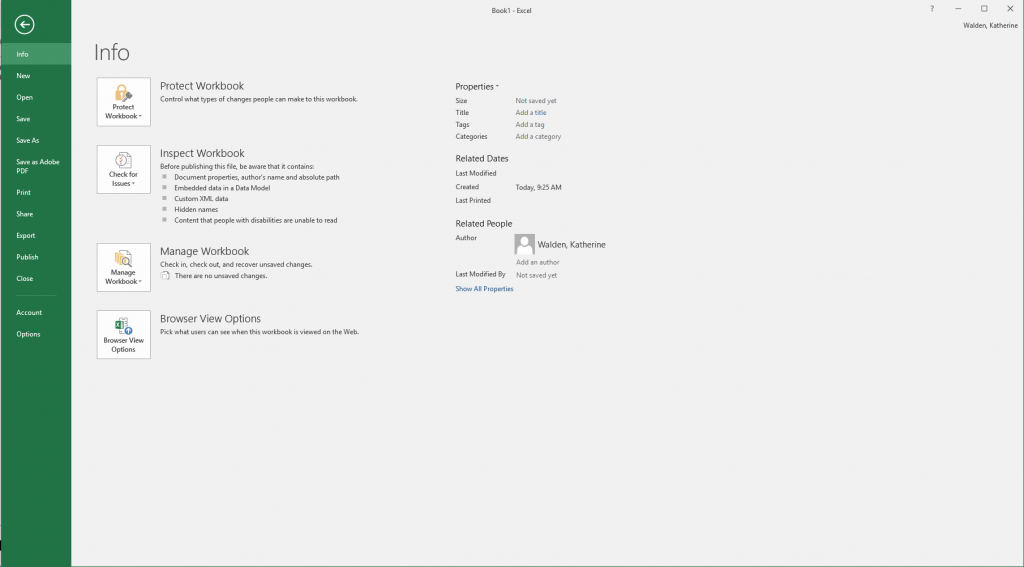
35-Open Microsoft Excel. Click File—Options to open the Excel Options window.
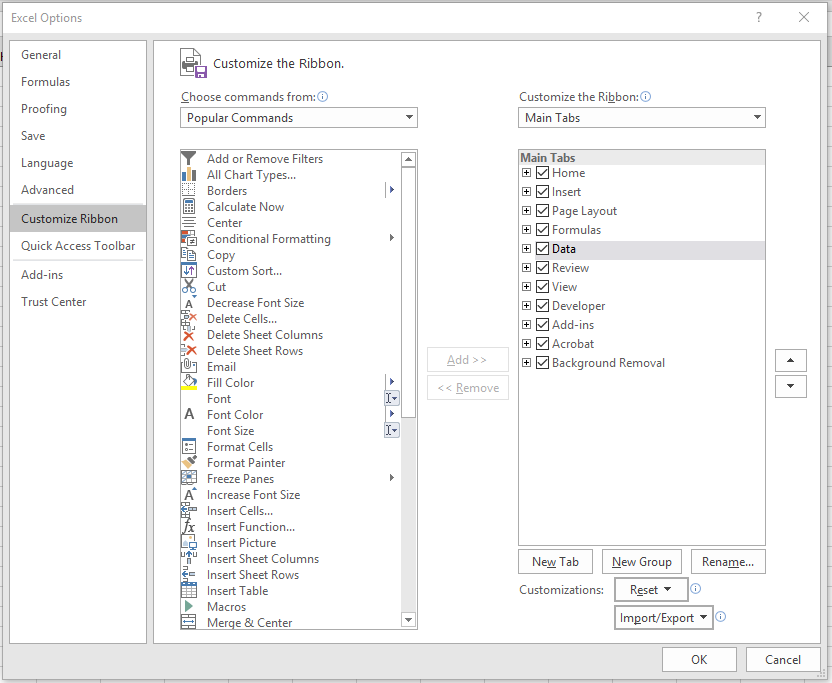
36-Under Customize Ribbon, check the box next to Developer to enable the Developer tools. Click OK.
37-A Developer tab should now be visible in the top-level menu.
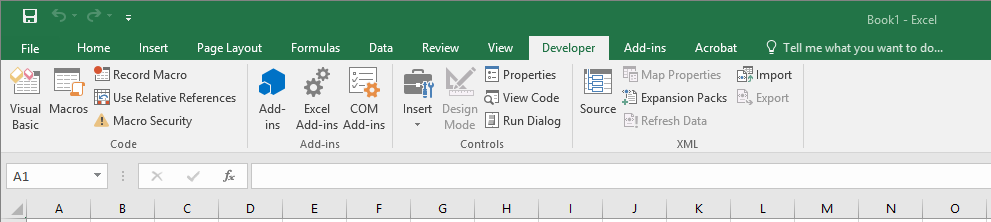
38-Click on the Developer tab, and select Import.
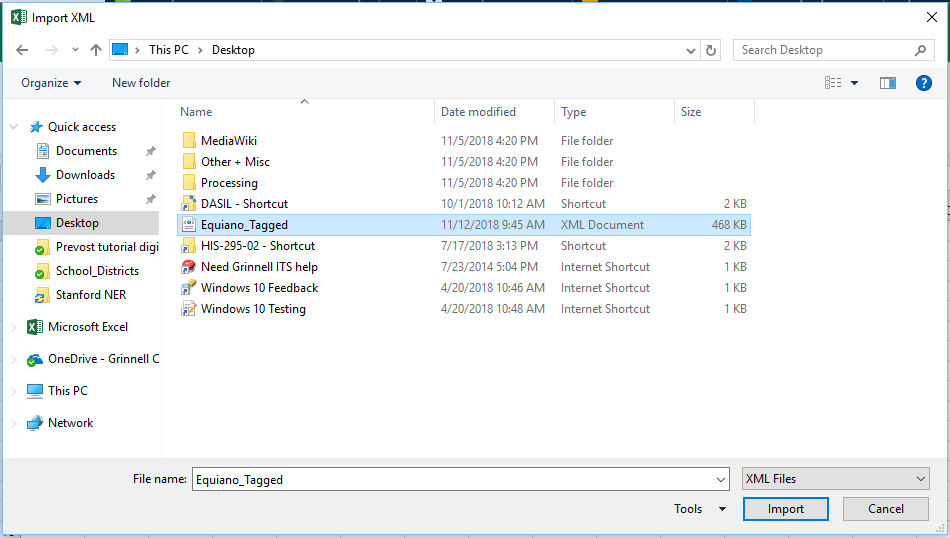
39-Select the Equiano_Tagged XML file and click Import.
40-We still have a variety of parsing errors in our XML file. Click on Details to view the specific line for each error.
41-You can go back into the Validator to view that line, or open the file in Notepad++ to identify and correct these errors.
42-Save the file after correcting each error, and retry the import into Excel.
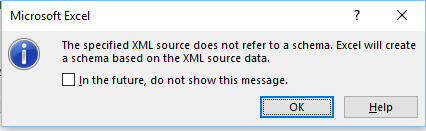
43-Once all the errors have been resolved, click OK on the window the pops up.
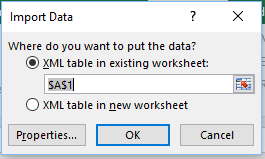
44-You can add the data to an existing worksheet, or import it to a new worksheet. Click OK.
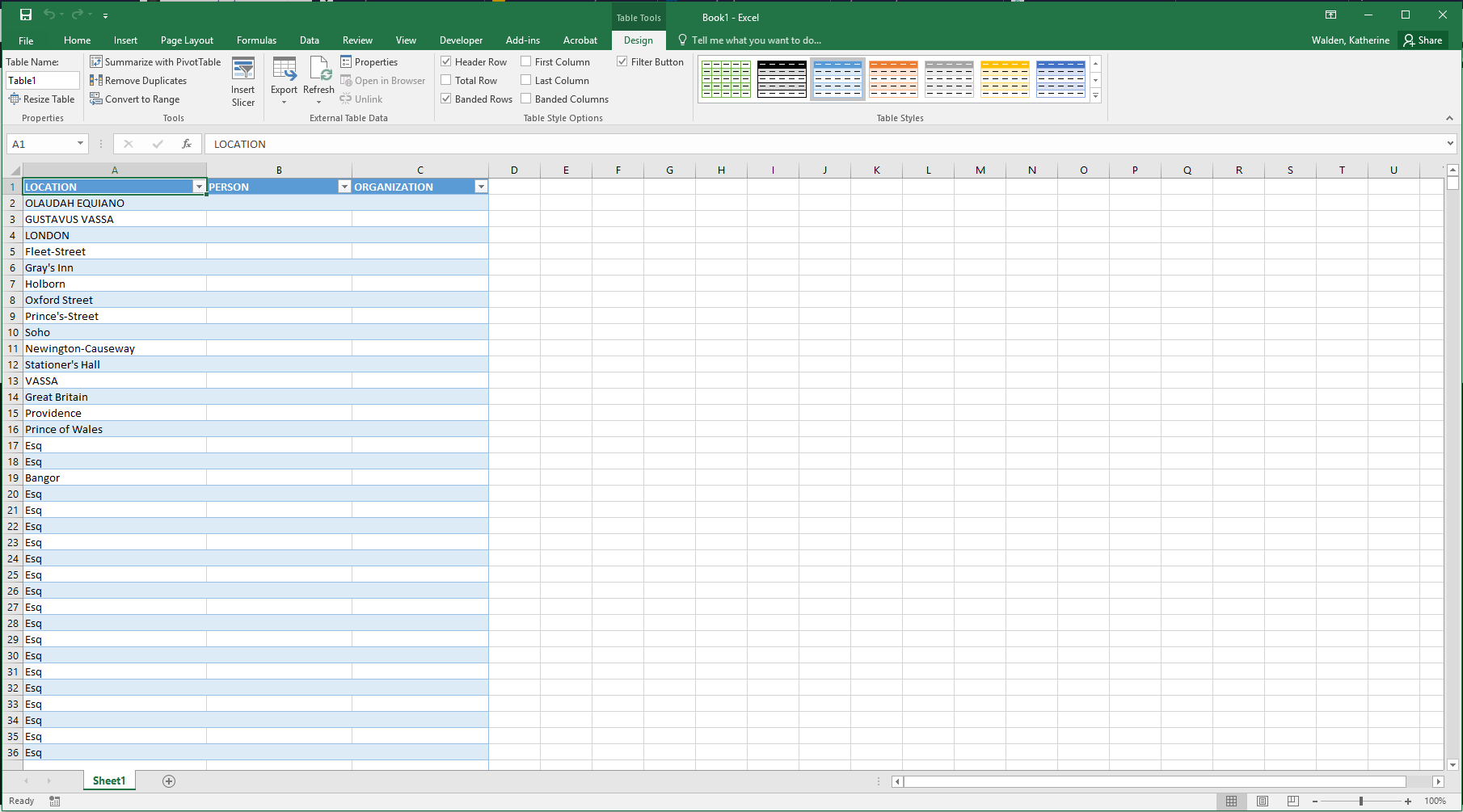
45-You can now see the entities tagged in the NER as distinct columns of Location, Person, and Organization.
46-From here, we could isolate Locations to map in a GIS system. Or, we could look at Persons and Organizations to build a network graph.
Reflection Questions:
- What changes did you make to the XML file to allow Excel to import it?
- How could these changes impact the meaning(s) of the original text?
- Why do you think these changes are necessary?
- What is gained or lost by going through this process manually (by hand) versus automating these changes?
- Now that you have extracted a list of tagged entities, what could you do next with this data?
- What questions do you have about this data? How could you use textual analysis methods/tools to address or answer those questions?
Answer these question in your Reflection Journal BY Wednesday, November 6 at 5:00 pm
- Did you gain any new insights into Olaudah Equiano’s narrative by using topic modeling or named entity recognition?
- If you were able to pursue these lines of inquiry further, what new historical questions might you be able to ask about Equiano?
- What are the limitations of these tools?
